Jun 26, 2026
How to Flash X96Q Android TV Box (Allwinner H313) - Official Guide
For the official firmware files or if you need professional technical support for your X96Q, visit our website: [www.jsatdigital.com or contact us directly at info@jsatdigital.com
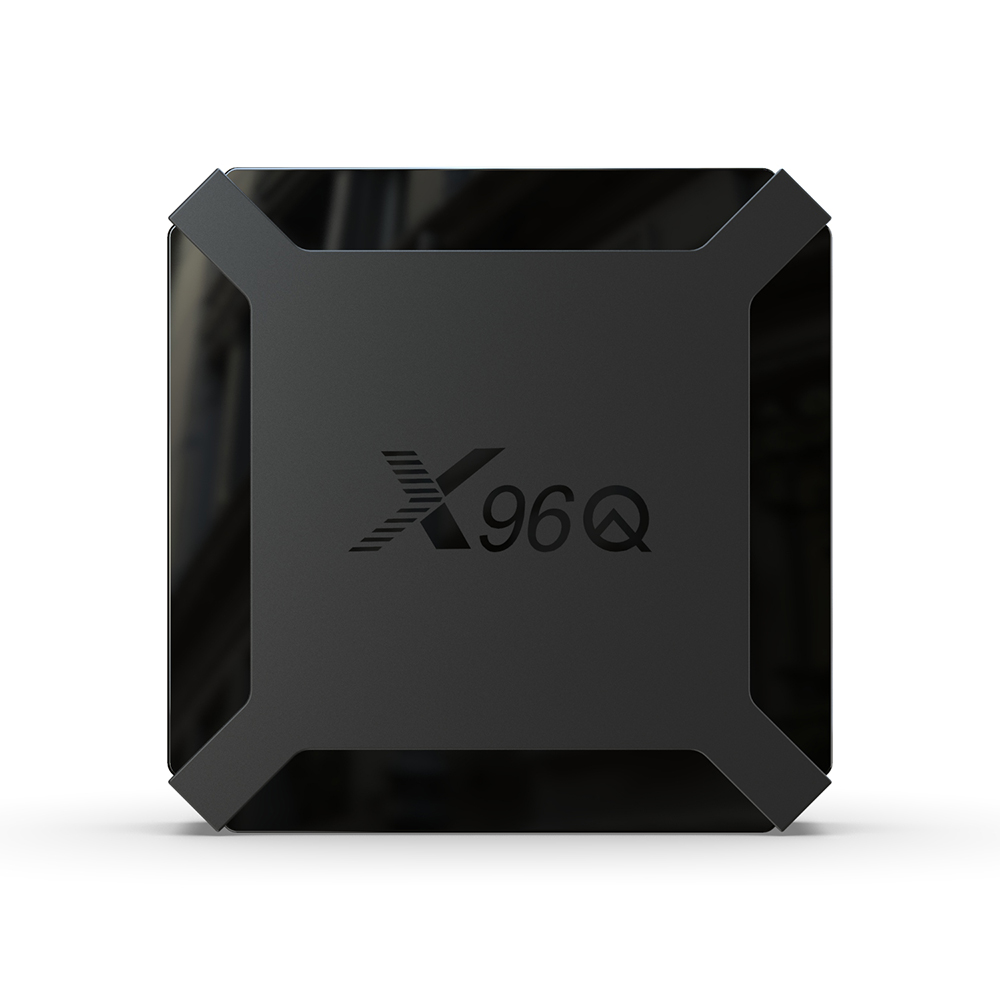
Subject: Firmware Update Guide for X96Q (Allwinner Solution)
Dear Customer,
To restore or update the firmware on your X96Q (Allwinner-based model), please follow these steps.
⚠️ Important Disclaimer:
- Flash at your own risk: Using the wrong firmware file can render the device inoperable ("brick" it). Please ensure you have the firmware file specifically designated for your device's motherboard version.
- Hardware Requirement: A USB-to-USB (Male-to-Male) cable is required to connect your TV box to your PC.
Step-by-Step Flashing Process:
- Preparation:
- Download and install the PhoenixSuit software on your Windows PC.
- Download the correct firmware image file (
.img) for your specific X96Q board.
- Load Firmware:
- Open PhoenixSuit, click on the "Firmware" tab, and click "Image" to select and load the firmware file you downloaded.
- Enter Flash Mode:
- Ensure the TV box is disconnected from the power supply.
- Use a pin or paperclip to press and hold the hidden Reset button located inside the AV port.
- While keeping the button pressed, connect the TV box to your PC using the USB-to-USB cable.
- Once the PhoenixSuit software detects the device, you may release the reset button.
- Flashing:
- The software will prompt you to confirm the update. Click "Yes" to start the process.
- Wait for the progress bar to reach 100% and show a "Firmware update succeeds" message. Do not disconnect the cable during this process.
-
Need Assistance? If you are unsure about your device's motherboard version, please send us a photo of the label on the bottom of your unit or the version printed on the PCB. We will provide the compatible firmware for you.
Best regards, [Zhuhai jsat electronic technology co.,ltd ]